> ## Documentation Index
> Fetch the complete documentation index at: https://docs-dev-feat-member-mgmt-docs.mintlify.site/llms.txt
> Use this file to discover all available pages before exploring further.

# ユースケース：Formsを使用して追加のサインアップ手順を構成する

> Forms for Actionsを使用して追加のサインアップ手順を構成する方法を説明します。

<Card title="始める前に">
  1. 以下のスコープを有効にして、[マシンツーマシンアプリケーション](https://auth0.com/docs/get-started/auth0-overview/create-applications/machine-to-machine-apps)を作成します。

  * `read:users`
  * `update:users`
  * `create:users`
  * `read:users_app_metadata`
  * `update:users_app_metadata`
  * `create:users_app_metadata`

  2. マシンツーマシンアプリケーションの資格情報を使って[Vault接続](/docs/ja-jp/customize/forms/vault)を追加します。
</Card>

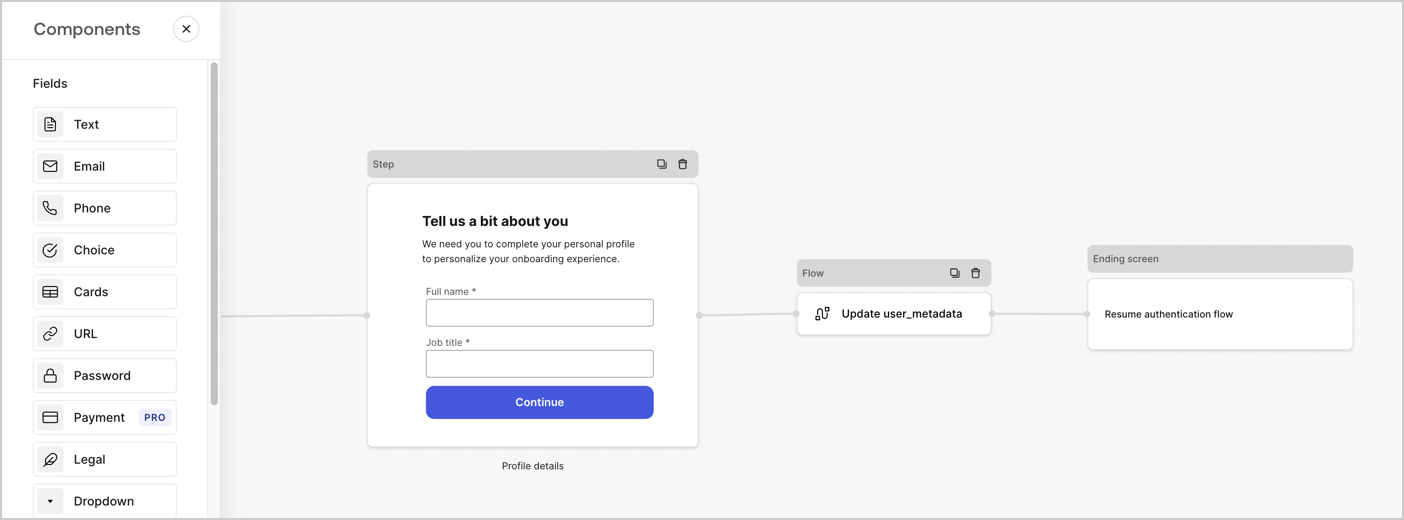
Forms for Actionsを使用すると、サインアップまたはログインフローに追加のステップを作成し、ユーザーがアプリケーションにアクセスできるようにする前にそれらのステップを必須にすることができます。
<Frame>
  <img src="https://mintcdn.com/docs-dev-feat-member-mgmt-docs/Qh4ViyWCldTQ2XNs/docs/images/ja-jp/cdy7uua7fh8z/ZOQNi6SrEC9OREcBbdiJ3/d79f84fb61acd5473bdf932527e26d58/custom-signup-form.png?fit=max&auto=format&n=Qh4ViyWCldTQ2XNs&q=85&s=b933d6566fb4d644d344eec15a427ef1" alt="Dashboard > Actions > Forms > Use Case Custom Signup Form" data-og-width="1404" width="1404" data-og-height="520" height="520" data-path="docs/images/ja-jp/cdy7uua7fh8z/ZOQNi6SrEC9OREcBbdiJ3/d79f84fb61acd5473bdf932527e26d58/custom-signup-form.png" data-optimize="true" data-opv="3" srcset="https://mintcdn.com/docs-dev-feat-member-mgmt-docs/Qh4ViyWCldTQ2XNs/docs/images/ja-jp/cdy7uua7fh8z/ZOQNi6SrEC9OREcBbdiJ3/d79f84fb61acd5473bdf932527e26d58/custom-signup-form.png?w=280&fit=max&auto=format&n=Qh4ViyWCldTQ2XNs&q=85&s=c49bef3bf87c5ecc70537dfafa7027c6 280w, https://mintcdn.com/docs-dev-feat-member-mgmt-docs/Qh4ViyWCldTQ2XNs/docs/images/ja-jp/cdy7uua7fh8z/ZOQNi6SrEC9OREcBbdiJ3/d79f84fb61acd5473bdf932527e26d58/custom-signup-form.png?w=560&fit=max&auto=format&n=Qh4ViyWCldTQ2XNs&q=85&s=cb965423006d10c0bc74df2658c494b5 560w, https://mintcdn.com/docs-dev-feat-member-mgmt-docs/Qh4ViyWCldTQ2XNs/docs/images/ja-jp/cdy7uua7fh8z/ZOQNi6SrEC9OREcBbdiJ3/d79f84fb61acd5473bdf932527e26d58/custom-signup-form.png?w=840&fit=max&auto=format&n=Qh4ViyWCldTQ2XNs&q=85&s=3f80a49d090566c00ee09f0a333fb3fc 840w, https://mintcdn.com/docs-dev-feat-member-mgmt-docs/Qh4ViyWCldTQ2XNs/docs/images/ja-jp/cdy7uua7fh8z/ZOQNi6SrEC9OREcBbdiJ3/d79f84fb61acd5473bdf932527e26d58/custom-signup-form.png?w=1100&fit=max&auto=format&n=Qh4ViyWCldTQ2XNs&q=85&s=f952f4e7064f9a4398efe433908c2ed5 1100w, https://mintcdn.com/docs-dev-feat-member-mgmt-docs/Qh4ViyWCldTQ2XNs/docs/images/ja-jp/cdy7uua7fh8z/ZOQNi6SrEC9OREcBbdiJ3/d79f84fb61acd5473bdf932527e26d58/custom-signup-form.png?w=1650&fit=max&auto=format&n=Qh4ViyWCldTQ2XNs&q=85&s=b21e0f142902104610d667e35e2d95d8 1650w, https://mintcdn.com/docs-dev-feat-member-mgmt-docs/Qh4ViyWCldTQ2XNs/docs/images/ja-jp/cdy7uua7fh8z/ZOQNi6SrEC9OREcBbdiJ3/d79f84fb61acd5473bdf932527e26d58/custom-signup-form.png?w=2500&fit=max&auto=format&n=Qh4ViyWCldTQ2XNs&q=85&s=bb9b3124f7980e6e23048c0d01825a96 2500w" />
</Frame>

以下のセクションでは、ノードとフローを使用して追加のサインアップステップフォームを作成する方法と、フォームを[ポストログイン](/docs/ja-jp/customize/actions/explore-triggers/signup-and-login-triggers/login-trigger)アクションに追加する手順について説明します。

## フォームをゼロから作成する

情報を収集するためのフォームを作成するには、次の手順に従ってください。

1. **［Auth0 Dashboard］>［Actions（アクション）］>［Forms（フォーム）］** の順に選択して、フォームエディターを開きます。
2. **［Create Form（フォームを作成）］** > **［Start from scratch（初めから作成する）］** の順に選択します。

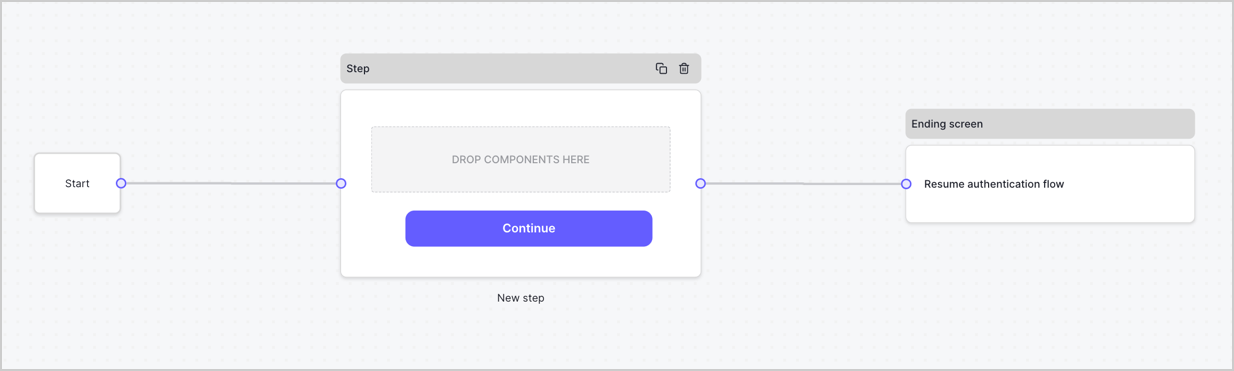
特に設定を変更しない限り、新しいフォームには開始ノード、ステップノード、および終了スクリーンノードが含まれます。
<Frame>
  <img src="https://mintcdn.com/docs-dev-feat-member-mgmt-docs/ez-RF4bZi7CI0Ty8/docs/images/ja-jp/cdy7uua7fh8z/2TZ9jSjgEcARFpULI6hz4R/a4319a1bd482f2ee5cc23100fdb2f42c/New-form-Forms-for-action-use-case.png?fit=max&auto=format&n=ez-RF4bZi7CI0Ty8&q=85&s=6e5e21d7243c178c83068dc2550421d8" alt="Dashboard > Forms > Use Cases > Form" data-og-width="1234" width="1234" data-og-height="371" height="371" data-path="docs/images/ja-jp/cdy7uua7fh8z/2TZ9jSjgEcARFpULI6hz4R/a4319a1bd482f2ee5cc23100fdb2f42c/New-form-Forms-for-action-use-case.png" data-optimize="true" data-opv="3" srcset="https://mintcdn.com/docs-dev-feat-member-mgmt-docs/ez-RF4bZi7CI0Ty8/docs/images/ja-jp/cdy7uua7fh8z/2TZ9jSjgEcARFpULI6hz4R/a4319a1bd482f2ee5cc23100fdb2f42c/New-form-Forms-for-action-use-case.png?w=280&fit=max&auto=format&n=ez-RF4bZi7CI0Ty8&q=85&s=fbebd101c7aa73cf405428bf33a0a104 280w, https://mintcdn.com/docs-dev-feat-member-mgmt-docs/ez-RF4bZi7CI0Ty8/docs/images/ja-jp/cdy7uua7fh8z/2TZ9jSjgEcARFpULI6hz4R/a4319a1bd482f2ee5cc23100fdb2f42c/New-form-Forms-for-action-use-case.png?w=560&fit=max&auto=format&n=ez-RF4bZi7CI0Ty8&q=85&s=e666c4142b6e44bf2d941d62a7af97db 560w, https://mintcdn.com/docs-dev-feat-member-mgmt-docs/ez-RF4bZi7CI0Ty8/docs/images/ja-jp/cdy7uua7fh8z/2TZ9jSjgEcARFpULI6hz4R/a4319a1bd482f2ee5cc23100fdb2f42c/New-form-Forms-for-action-use-case.png?w=840&fit=max&auto=format&n=ez-RF4bZi7CI0Ty8&q=85&s=bb9f7fa325f567becd8e2ce3dd3b1885 840w, https://mintcdn.com/docs-dev-feat-member-mgmt-docs/ez-RF4bZi7CI0Ty8/docs/images/ja-jp/cdy7uua7fh8z/2TZ9jSjgEcARFpULI6hz4R/a4319a1bd482f2ee5cc23100fdb2f42c/New-form-Forms-for-action-use-case.png?w=1100&fit=max&auto=format&n=ez-RF4bZi7CI0Ty8&q=85&s=d58aa47d26c408a7ea98083cbeb2d77b 1100w, https://mintcdn.com/docs-dev-feat-member-mgmt-docs/ez-RF4bZi7CI0Ty8/docs/images/ja-jp/cdy7uua7fh8z/2TZ9jSjgEcARFpULI6hz4R/a4319a1bd482f2ee5cc23100fdb2f42c/New-form-Forms-for-action-use-case.png?w=1650&fit=max&auto=format&n=ez-RF4bZi7CI0Ty8&q=85&s=ff1c493e020c54ec150c528e8e3a6652 1650w, https://mintcdn.com/docs-dev-feat-member-mgmt-docs/ez-RF4bZi7CI0Ty8/docs/images/ja-jp/cdy7uua7fh8z/2TZ9jSjgEcARFpULI6hz4R/a4319a1bd482f2ee5cc23100fdb2f42c/New-form-Forms-for-action-use-case.png?w=2500&fit=max&auto=format&n=ez-RF4bZi7CI0Ty8&q=85&s=f59e19dd1720db4f2ea9152c20283581 2500w" />
</Frame>

### ステップノードを構成する

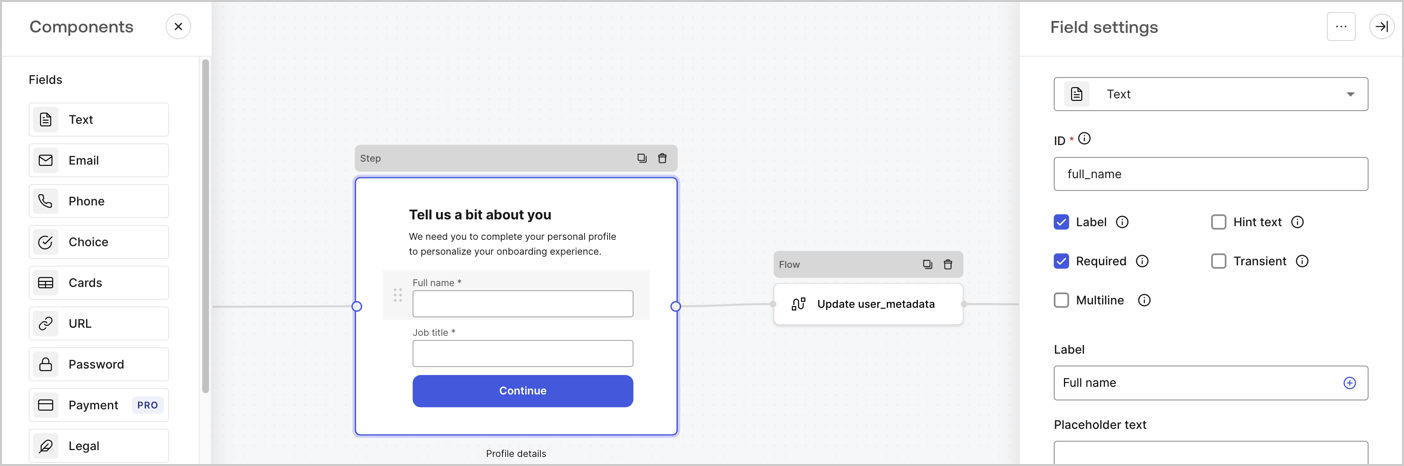
ステップノードは、ユーザーに表示されるグラフィカルインターフェースです。次の手順に従って、ステップノードに[フィールド](/docs/ja-jp/customize/forms/nodes-and-components)を追加し、ユーザーのフルネームと役職の値を収集します。

1. **［Components menu（コンポーネントメニュー）］** から **［Rich text（リッチテキスト）］** フィールドを **［Step（ステップ）］** ノードにドラッグします。

   * **［Rich text（リッチテキスト）］** ：カスタムメッセージを入力します。。
   * **［Save（保存）］** を選択します。
2. **［Text（テキスト）］** フィールドを **［Step（ステップ）］** ノードにドラッグします。

   * **Id** ：`full_name`を入力します。
   * **［Label（ラベル）］** ：`フルネーム`を入力します。
   * **［Label（ラベル）］** ：チェックボックスを有効にします。
   * **［Required（必要）］** ：チェックボックスを有効にします。
   * **［Save（保存）］** を選択します。
3. **［Text（テキスト）］** フィールドを **［Step（ステップ）］** ノードにドラッグします。

   * **Id** ：`job_title`を入力します。
   * **［Label（ラベル）］** ：`役職`を入力します。
   * **［Label（ラベル）］** ：チェックボックスを有効にします。
   * **［Required（必要）］** ：チェックボックスを有効にします。
   * **［Save（保存）］** を選択します。
4. **［Publish（公開）］** を選択し、保存します。

<Frame>
  <img src="https://mintcdn.com/docs-dev-feat-member-mgmt-docs/926z6NOo-mwGVgjV/docs/images/ja-jp/cdy7uua7fh8z/6Kcn0ai9fsVsqHwZpTGByG/37cbf4ffee63a7010926b15f06dd20ac/custom-signup-step-node.png?fit=max&auto=format&n=926z6NOo-mwGVgjV&q=85&s=62ec3806f589f418541ba289615d095e" alt="Dashboard > Actions > Forms > Use Case Custom Signup Steps Step node" data-og-width="1404" width="1404" data-og-height="466" height="466" data-path="docs/images/ja-jp/cdy7uua7fh8z/6Kcn0ai9fsVsqHwZpTGByG/37cbf4ffee63a7010926b15f06dd20ac/custom-signup-step-node.png" data-optimize="true" data-opv="3" srcset="https://mintcdn.com/docs-dev-feat-member-mgmt-docs/926z6NOo-mwGVgjV/docs/images/ja-jp/cdy7uua7fh8z/6Kcn0ai9fsVsqHwZpTGByG/37cbf4ffee63a7010926b15f06dd20ac/custom-signup-step-node.png?w=280&fit=max&auto=format&n=926z6NOo-mwGVgjV&q=85&s=bbc1242aa1b68882bdccbda1f9ccc188 280w, https://mintcdn.com/docs-dev-feat-member-mgmt-docs/926z6NOo-mwGVgjV/docs/images/ja-jp/cdy7uua7fh8z/6Kcn0ai9fsVsqHwZpTGByG/37cbf4ffee63a7010926b15f06dd20ac/custom-signup-step-node.png?w=560&fit=max&auto=format&n=926z6NOo-mwGVgjV&q=85&s=72fc039b63af9c94407f08000fd0d09a 560w, https://mintcdn.com/docs-dev-feat-member-mgmt-docs/926z6NOo-mwGVgjV/docs/images/ja-jp/cdy7uua7fh8z/6Kcn0ai9fsVsqHwZpTGByG/37cbf4ffee63a7010926b15f06dd20ac/custom-signup-step-node.png?w=840&fit=max&auto=format&n=926z6NOo-mwGVgjV&q=85&s=20cbd403580cf36567bdb31a18bb2be8 840w, https://mintcdn.com/docs-dev-feat-member-mgmt-docs/926z6NOo-mwGVgjV/docs/images/ja-jp/cdy7uua7fh8z/6Kcn0ai9fsVsqHwZpTGByG/37cbf4ffee63a7010926b15f06dd20ac/custom-signup-step-node.png?w=1100&fit=max&auto=format&n=926z6NOo-mwGVgjV&q=85&s=f4382fffc702779102f0a0a1d98b21a5 1100w, https://mintcdn.com/docs-dev-feat-member-mgmt-docs/926z6NOo-mwGVgjV/docs/images/ja-jp/cdy7uua7fh8z/6Kcn0ai9fsVsqHwZpTGByG/37cbf4ffee63a7010926b15f06dd20ac/custom-signup-step-node.png?w=1650&fit=max&auto=format&n=926z6NOo-mwGVgjV&q=85&s=d24bed912babec7d230ac74fe3bc34f6 1650w, https://mintcdn.com/docs-dev-feat-member-mgmt-docs/926z6NOo-mwGVgjV/docs/images/ja-jp/cdy7uua7fh8z/6Kcn0ai9fsVsqHwZpTGByG/37cbf4ffee63a7010926b15f06dd20ac/custom-signup-step-node.png?w=2500&fit=max&auto=format&n=926z6NOo-mwGVgjV&q=85&s=33390168e1337dafd30a8a374355f68e 2500w" />
</Frame>

### フローノードの構成

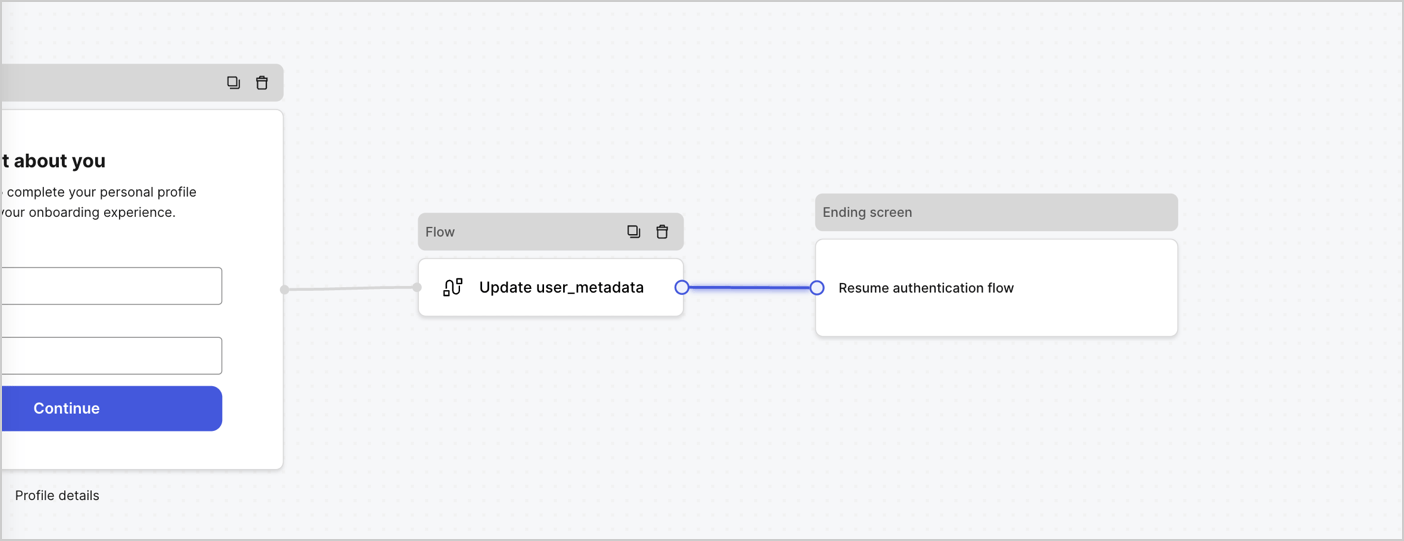
次の手順に従って、 **［Step（ステップ）］** ノードの後に​​ **［Flow（フロー）］** ノードを追加し、`user_metadata`を更新して認証フローを再開します。

1. フォームエディターの下にある **［Flow（フロー）］** を選択します。
2. **［Step（ステップ）］** と **［Ending Screen（終了スクリーン）］** ノードの間にある既存のリンクを削除します。
3. 新しい **［Flow（フロー）］** > **［Click to add a flow（クリックして、フローを追加する）］** > **［Create a new flow（新しいフローを作成する）］** を選択します。

   * **［Name（名前）］** フィールドに`Update user_metadata`を入力します。
   * **［Create（作成）］** を選択します。
   * **［Save（保存）］** を選択します。
4. 下の画像のように **［Step（ステップ）］** と **［Ending Screen（終了スクリーン）** ノードに **［Flow（フロー）］** ノードをリンクします。
5. **［Publish（公開）］** を選択し、保存します。

<Frame>
  <img src="https://mintcdn.com/docs-dev-feat-member-mgmt-docs/1sbdbEZArrp77jA9/docs/images/ja-jp/cdy7uua7fh8z/4nTdYdA2Hu5vK65smkdvJg/db3294ebc25a7c2636be96362a3ea56e/custom-signup-step-flow.png?fit=max&auto=format&n=1sbdbEZArrp77jA9&q=85&s=38ec01cabc6fd3f7a1e1cc8b6a51c192" alt="Dashboard > Actions > Forms > Use Case Custom Signup Step Update User metadata flow" data-og-width="1404" width="1404" data-og-height="541" height="541" data-path="docs/images/ja-jp/cdy7uua7fh8z/4nTdYdA2Hu5vK65smkdvJg/db3294ebc25a7c2636be96362a3ea56e/custom-signup-step-flow.png" data-optimize="true" data-opv="3" srcset="https://mintcdn.com/docs-dev-feat-member-mgmt-docs/1sbdbEZArrp77jA9/docs/images/ja-jp/cdy7uua7fh8z/4nTdYdA2Hu5vK65smkdvJg/db3294ebc25a7c2636be96362a3ea56e/custom-signup-step-flow.png?w=280&fit=max&auto=format&n=1sbdbEZArrp77jA9&q=85&s=914cc86007520635c22ddc1582c9547e 280w, https://mintcdn.com/docs-dev-feat-member-mgmt-docs/1sbdbEZArrp77jA9/docs/images/ja-jp/cdy7uua7fh8z/4nTdYdA2Hu5vK65smkdvJg/db3294ebc25a7c2636be96362a3ea56e/custom-signup-step-flow.png?w=560&fit=max&auto=format&n=1sbdbEZArrp77jA9&q=85&s=43e599e3c19ea7b8656e8893b7aecc45 560w, https://mintcdn.com/docs-dev-feat-member-mgmt-docs/1sbdbEZArrp77jA9/docs/images/ja-jp/cdy7uua7fh8z/4nTdYdA2Hu5vK65smkdvJg/db3294ebc25a7c2636be96362a3ea56e/custom-signup-step-flow.png?w=840&fit=max&auto=format&n=1sbdbEZArrp77jA9&q=85&s=0d888e4ca2e06ce0cdfbf8e8ed0d272b 840w, https://mintcdn.com/docs-dev-feat-member-mgmt-docs/1sbdbEZArrp77jA9/docs/images/ja-jp/cdy7uua7fh8z/4nTdYdA2Hu5vK65smkdvJg/db3294ebc25a7c2636be96362a3ea56e/custom-signup-step-flow.png?w=1100&fit=max&auto=format&n=1sbdbEZArrp77jA9&q=85&s=dab8cb999df669b79766e7b02b0cfd51 1100w, https://mintcdn.com/docs-dev-feat-member-mgmt-docs/1sbdbEZArrp77jA9/docs/images/ja-jp/cdy7uua7fh8z/4nTdYdA2Hu5vK65smkdvJg/db3294ebc25a7c2636be96362a3ea56e/custom-signup-step-flow.png?w=1650&fit=max&auto=format&n=1sbdbEZArrp77jA9&q=85&s=f4230eedc8397635a829adc821d9c272 1650w, https://mintcdn.com/docs-dev-feat-member-mgmt-docs/1sbdbEZArrp77jA9/docs/images/ja-jp/cdy7uua7fh8z/4nTdYdA2Hu5vK65smkdvJg/db3294ebc25a7c2636be96362a3ea56e/custom-signup-step-flow.png?w=2500&fit=max&auto=format&n=1sbdbEZArrp77jA9&q=85&s=3461a950ae0c54934af2fdbde80f86c5 2500w" />
</Frame>

Auth0ユーザーの更新アクションをフローに追加するには、次の手順に従います。

1. **［Flow（フロー）］** の **［Update user\_metadata（user\_metadataの更新）］** > **［Edit flow（フローの編集）］** を選択し、新しいタブでフローエディターを開きます。
2. アクションの開始の下にある **［+］** アイコンを選択し、 **Update user（ユーザーの更新）** アクションを追加します。以下のフィールドに記入して、 **［Save（保存）］** を選択し、続けてください。

   * **Connection（接続）** ：ドロップダウンからM2MアプリケーションへのVault接続を選択します。

   * **User ID（ユーザーID）** ：`{{context.user.user_id}}`と入力します。

   * **［Body（ボディ）］** ：次のコードをコピーして貼り付け、`full_name`および`job_title`プロパティを使用してuser\_metadataを更新します。

     ```json lines theme={null}
     {
       "user_metadata": {
         "full_name": "{{fields.full_name}}",
         "job_title": "{{fields.job_title}}"
       }
     }
     ```

   * **［Save（保存）］** を選択します。
3. ［Publish（公開）］を選択し、保存します。

## フォームレンダーコードを取得する

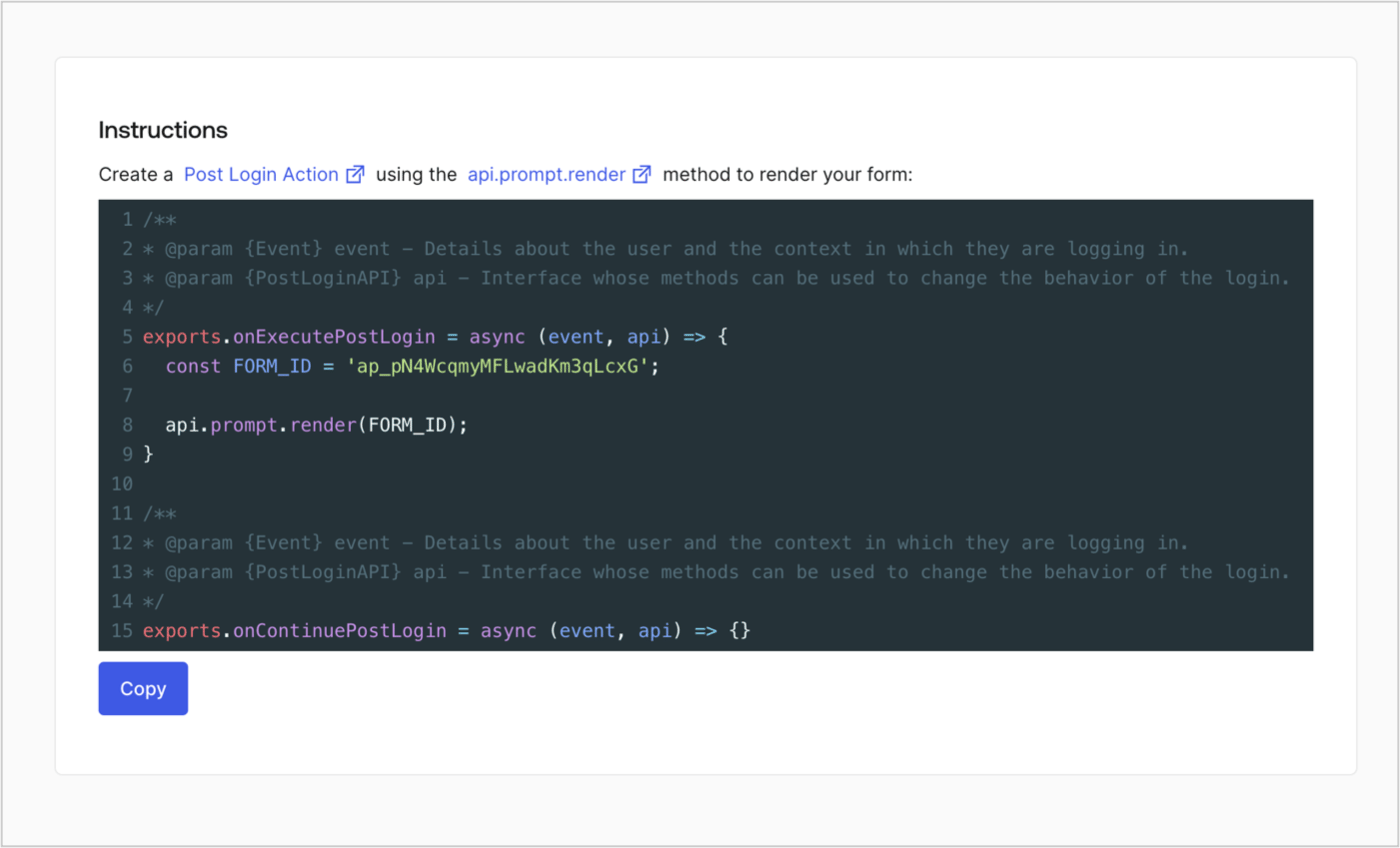
次の手順に従って、フォームレンダーコードを取得して、カスタムのログイン後アクションを使ったフォームを視覚的にレンダリングします。

* Formディターから **`<>`［Render（レンダー）］** を選択します。
* **［Copy（コピー）］** を選択します。

<Frame>
  <img src="https://mintcdn.com/docs-dev-feat-member-mgmt-docs/hKsYLTCXPx3OS24q/docs/images/ja-jp/cdy7uua7fh8z/2EIUzc539sq9lwoTKbjoJv/496a864c0fc44a782c9cadca119dbfb0/embed.png?fit=max&auto=format&n=hKsYLTCXPx3OS24q&q=85&s=390eea9d5da01a14a59d2712847d33ef" alt="Dashboard > Actions > Forms > Form > Embed" data-og-width="1400" width="1400" data-og-height="848" height="848" data-path="docs/images/ja-jp/cdy7uua7fh8z/2EIUzc539sq9lwoTKbjoJv/496a864c0fc44a782c9cadca119dbfb0/embed.png" data-optimize="true" data-opv="3" srcset="https://mintcdn.com/docs-dev-feat-member-mgmt-docs/hKsYLTCXPx3OS24q/docs/images/ja-jp/cdy7uua7fh8z/2EIUzc539sq9lwoTKbjoJv/496a864c0fc44a782c9cadca119dbfb0/embed.png?w=280&fit=max&auto=format&n=hKsYLTCXPx3OS24q&q=85&s=34a35024730db75f3ab5be66fd9bcbdb 280w, https://mintcdn.com/docs-dev-feat-member-mgmt-docs/hKsYLTCXPx3OS24q/docs/images/ja-jp/cdy7uua7fh8z/2EIUzc539sq9lwoTKbjoJv/496a864c0fc44a782c9cadca119dbfb0/embed.png?w=560&fit=max&auto=format&n=hKsYLTCXPx3OS24q&q=85&s=cbbada2986de6871e1fc157983d6fad3 560w, https://mintcdn.com/docs-dev-feat-member-mgmt-docs/hKsYLTCXPx3OS24q/docs/images/ja-jp/cdy7uua7fh8z/2EIUzc539sq9lwoTKbjoJv/496a864c0fc44a782c9cadca119dbfb0/embed.png?w=840&fit=max&auto=format&n=hKsYLTCXPx3OS24q&q=85&s=e02deb8b6040d4592719bbc099d2f84f 840w, https://mintcdn.com/docs-dev-feat-member-mgmt-docs/hKsYLTCXPx3OS24q/docs/images/ja-jp/cdy7uua7fh8z/2EIUzc539sq9lwoTKbjoJv/496a864c0fc44a782c9cadca119dbfb0/embed.png?w=1100&fit=max&auto=format&n=hKsYLTCXPx3OS24q&q=85&s=692074e100f331214a0f96d860778765 1100w, https://mintcdn.com/docs-dev-feat-member-mgmt-docs/hKsYLTCXPx3OS24q/docs/images/ja-jp/cdy7uua7fh8z/2EIUzc539sq9lwoTKbjoJv/496a864c0fc44a782c9cadca119dbfb0/embed.png?w=1650&fit=max&auto=format&n=hKsYLTCXPx3OS24q&q=85&s=db16969a5063b286708c3f748170461a 1650w, https://mintcdn.com/docs-dev-feat-member-mgmt-docs/hKsYLTCXPx3OS24q/docs/images/ja-jp/cdy7uua7fh8z/2EIUzc539sq9lwoTKbjoJv/496a864c0fc44a782c9cadca119dbfb0/embed.png?w=2500&fit=max&auto=format&n=hKsYLTCXPx3OS24q&q=85&s=b1fdf6c8a929e27faaa724d83ff1f837 2500w" />
</Frame>

## ポストログインアクションの作成

ポストログインアクションを作成してフォームをレンダリングするには、次の手順に従います。

1. **［Auth0 Dashboard（Auth0ダッシュボード）］>［Actions（アクション）］>［Flows（フロー）］>［Login（ログイン）］** に移動します。
2. **+** アイコンを選択し、 **［Build from scratch（初めから構築する）］** を選択します。

   * **［Name（名前）］** ：`［Render Additional Signup Form（追加サインアップフォームのレンダリング）］`を入力します。
   * **［Trigger（トリガー）］** ：`［Login / Post Login（ログイン/ログイン後）］`を選択します。
   * **［Runtime（ランタイム）］** ：推奨バージョンを選択します。
3. **［Create（作成）］** を選択します。

ログイン後アクションを構成するには：

1. 既存のコードをコードエディターから削除します。

2. フォームレンダリングコードをコードエディターにペーストします。

3. コードを編集して、フォームをレンダリングする条件ロジックを定義します。

   ```javascript lines theme={null}
   /**
   * @param {Event} event - Details about the user and the context in which they are logging in.
   * @param {PostLoginAPI} api - Interface whose methods can be used to change the behavior of the login.
   */
   exports.onExecutePostLogin = async (event, api) => {
     const FORM_ID = 'REPLACE_WITH_YOUR_FORM_ID';

     if (
       !event.user.user_metadata.full_name &&
       !event.user.user_metadata.job_title
     ) {
       api.prompt.render(FORM_ID);
     }
   }

   exports.onContinuePostLogin = async (event, api) => { }
   ```

   <Callout icon="file-lines" color="#0EA5E9" iconType="regular">
     上の例にあるコードでは、ユーザーのメタデータにfull\_nameプロパティとjob\_titleプロパティがない場合にフォームが表示されます。
   </Callout>

4. **［Deploy（導入）］** を選択します。

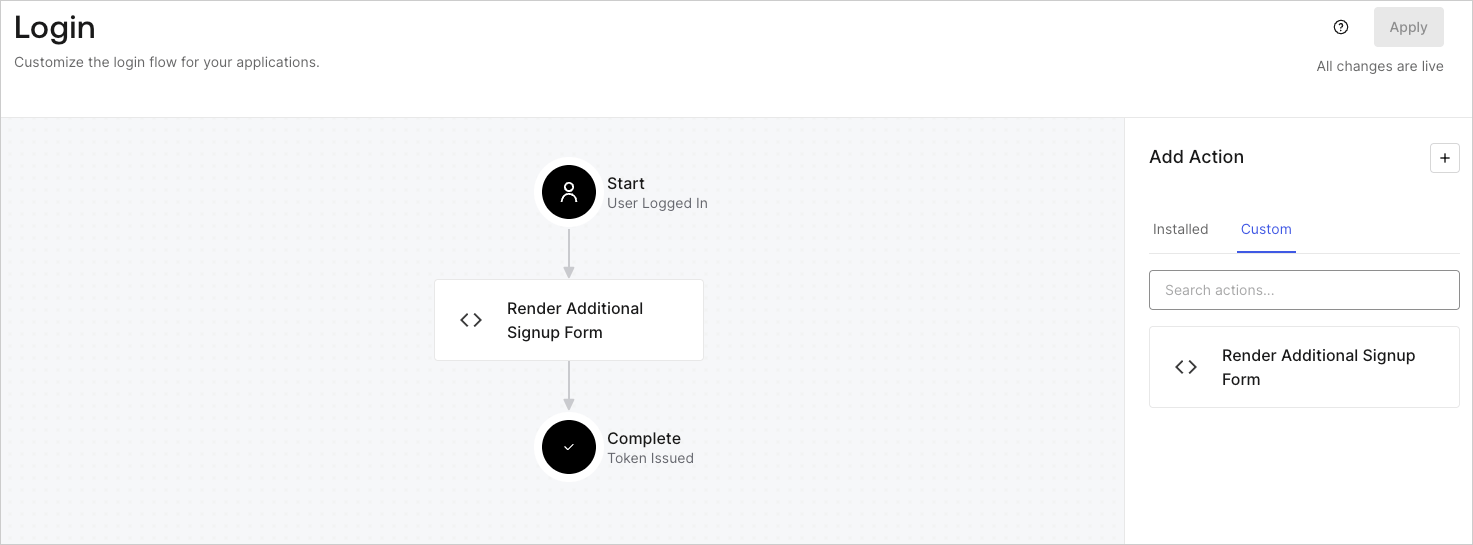
5. **［Render Additional Signup Form（追加サインアップフォームのレンダリング）］** アクションを **［Login（ログイン）］** フローにドラッグ＆ドロップします。

   <Frame>
     <img src="https://mintcdn.com/docs-dev-feat-member-mgmt-docs/XkApgew90q9Qw3iR/docs/images/ja-jp/cdy7uua7fh8z/1WBOicIOcH98hKj6Lq9HF2/4951e30a0cc08c7c5daa0116eaa17e11/Screenshot_2024-03-01_at_15.48.00.png?fit=max&auto=format&n=XkApgew90q9Qw3iR&q=85&s=e60dfaa5edf051db7b969f806155a2cd" alt="Dashboard > Forms > Use Cases Custom Signup Steps Login Flow" data-og-width="1473" width="1473" data-og-height="545" height="545" data-path="docs/images/ja-jp/cdy7uua7fh8z/1WBOicIOcH98hKj6Lq9HF2/4951e30a0cc08c7c5daa0116eaa17e11/Screenshot_2024-03-01_at_15.48.00.png" data-optimize="true" data-opv="3" srcset="https://mintcdn.com/docs-dev-feat-member-mgmt-docs/XkApgew90q9Qw3iR/docs/images/ja-jp/cdy7uua7fh8z/1WBOicIOcH98hKj6Lq9HF2/4951e30a0cc08c7c5daa0116eaa17e11/Screenshot_2024-03-01_at_15.48.00.png?w=280&fit=max&auto=format&n=XkApgew90q9Qw3iR&q=85&s=5ac3f42251062737a04e45c64908826c 280w, https://mintcdn.com/docs-dev-feat-member-mgmt-docs/XkApgew90q9Qw3iR/docs/images/ja-jp/cdy7uua7fh8z/1WBOicIOcH98hKj6Lq9HF2/4951e30a0cc08c7c5daa0116eaa17e11/Screenshot_2024-03-01_at_15.48.00.png?w=560&fit=max&auto=format&n=XkApgew90q9Qw3iR&q=85&s=3d6410fe52b47b4bcd098b60aae17b35 560w, https://mintcdn.com/docs-dev-feat-member-mgmt-docs/XkApgew90q9Qw3iR/docs/images/ja-jp/cdy7uua7fh8z/1WBOicIOcH98hKj6Lq9HF2/4951e30a0cc08c7c5daa0116eaa17e11/Screenshot_2024-03-01_at_15.48.00.png?w=840&fit=max&auto=format&n=XkApgew90q9Qw3iR&q=85&s=0de688e3d0db724209efc9e93ca82edc 840w, https://mintcdn.com/docs-dev-feat-member-mgmt-docs/XkApgew90q9Qw3iR/docs/images/ja-jp/cdy7uua7fh8z/1WBOicIOcH98hKj6Lq9HF2/4951e30a0cc08c7c5daa0116eaa17e11/Screenshot_2024-03-01_at_15.48.00.png?w=1100&fit=max&auto=format&n=XkApgew90q9Qw3iR&q=85&s=3776c39f819163ed42392a381bbc4a39 1100w, https://mintcdn.com/docs-dev-feat-member-mgmt-docs/XkApgew90q9Qw3iR/docs/images/ja-jp/cdy7uua7fh8z/1WBOicIOcH98hKj6Lq9HF2/4951e30a0cc08c7c5daa0116eaa17e11/Screenshot_2024-03-01_at_15.48.00.png?w=1650&fit=max&auto=format&n=XkApgew90q9Qw3iR&q=85&s=262b060cc6d18dc6d93ddb6673bbf5a4 1650w, https://mintcdn.com/docs-dev-feat-member-mgmt-docs/XkApgew90q9Qw3iR/docs/images/ja-jp/cdy7uua7fh8z/1WBOicIOcH98hKj6Lq9HF2/4951e30a0cc08c7c5daa0116eaa17e11/Screenshot_2024-03-01_at_15.48.00.png?w=2500&fit=max&auto=format&n=XkApgew90q9Qw3iR&q=85&s=1bedbf9bcca7bd49d509460ffc2ededf 2500w" />
   </Frame>

6. **［Apply（適用）］** を選択します。

### 実装のテスト

次の手順に従って実装をテストします。

* 新規ユーザーでアプリケーションにサインアップします。
* ログインフローのログイン後アクションでは、フォームがレンダリングされ、情報の入力が求められます。
* **［<Tooltip data-tooltip-id="react-containers-DefinitionTooltip-0" href="/docs/ja-jp/glossary?term=auth0-dashboard" tip="Auth0 Dashboard: サービスを構成するためのAuth0の主製品。" cta="用語集の表示">Auth0 Dashboard</Tooltip>（Auth0ダッシュボード）］>［User Management（ユーザー管理）］>［Users（ユーザー）］** を選択し、新しいユーザーを見つけ、その属性`full_name`および`job_title`が追加サインアップステップからの情報を含んでいることを検証します。